The Screen Lights Up but the Picture Is Wrong: NovaStar Config, Firmware and Pixel-Loading Mismatches — and How to Sort Them Out
An LED screen that powers on but shows a scrambled, shifted or wrongly sized picture is usually suffering from a configuration problem, not a hardware fault. This guide covers the three mismatches beh
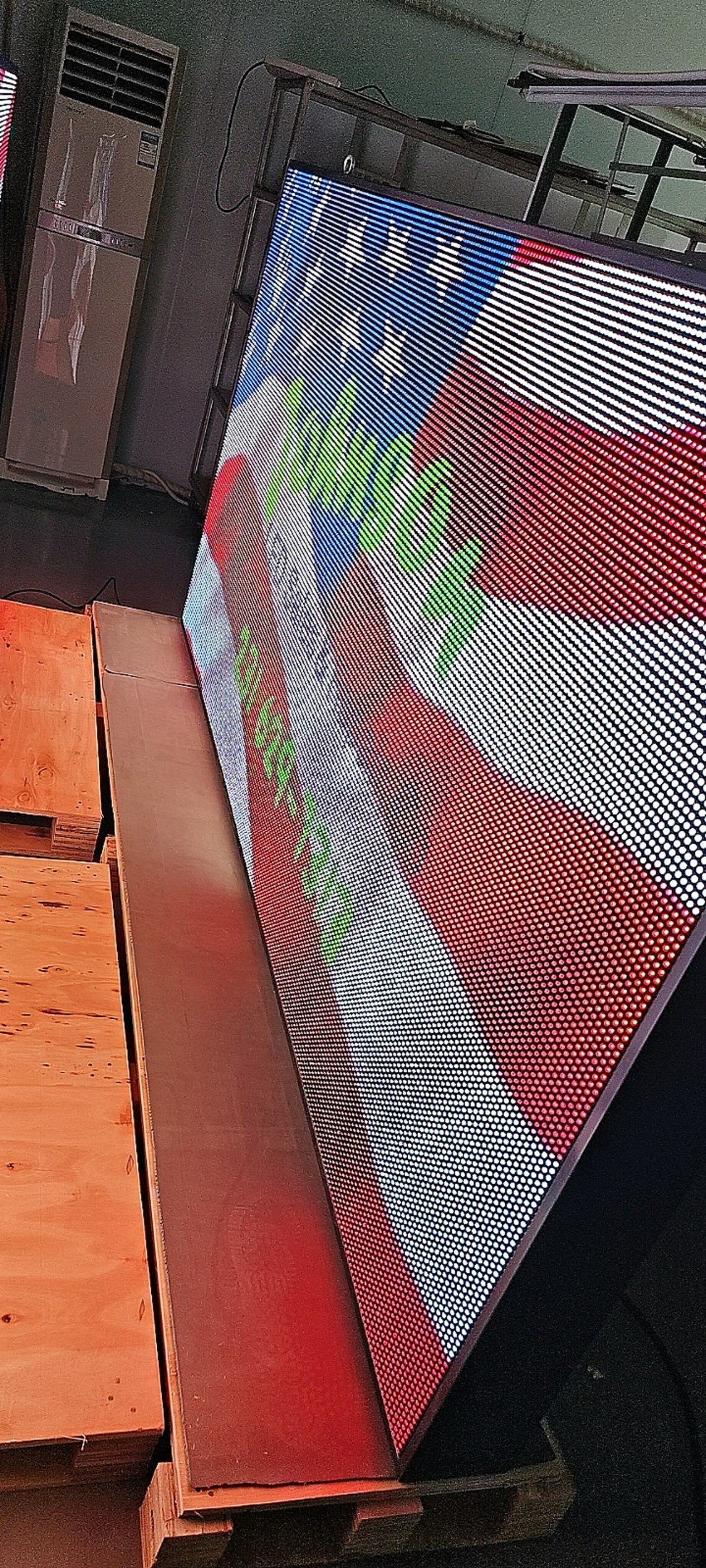
The screen powers up. Every cabinet lights. And the picture is wrong — scrambled blocks, cabinets showing each other's content, an image that is stretched, cropped or shifted, or colours that bear no relation to the source. When a screen lights but displays wrongly, the hardware is mostly fine. What is wrong is the information the control system is working from: the configuration loaded into the receiving cards, the firmware versions across the chain, or how many pixels each output is being asked to carry. These three mismatches account for most "it worked before we changed something" calls.
Mismatch 1: the wrong configuration file
Every receiving card needs a configuration that describes the cabinet it sits in: the module type, the scan mode, the cabinet size and how the modules are wired. Load a config built for a different cabinet or module and the card will still drive the LEDs — just with the wrong map. The symptoms are distinctive: rows or columns swapped, blocks of the image in the wrong place, a picture that looks folded or tiled incorrectly.
This usually happens after a repair. A receiving card is replaced, a cabinet is swapped from another screen, or a config file is sent from a laptop that holds files for several different screens. The fix is discipline, not guesswork: keep one known-good config file per screen, named for that screen, backed up in more than one place. After any card or cabinet change, send that file again and save it to the cards so it survives a power cycle — a config that was only sent but not saved disappears at the next restart, which is why some screens "fix themselves" until the power blinks.
Mismatch 2: firmware versions that do not match
The sending side, the receiving cards and the control software each run their own firmware or version, and they are tested to work as a set. Update one part of the chain — or fit a replacement card that arrives with a different version — and the set no longer matches. Symptoms range from a screen that will not take a new config, to intermittent flicker, to cabinets that drop out and come back.
The safe approach is to treat versions as a matched set. Before updating anything, record the current versions of every part of the chain. Update deliberately, one screen at a time, and re-check the picture afterwards — never update a working screen the night before an event. When a replacement card goes in, check its version against the cards already in the screen and bring it into line before blaming the cabinet.
Mismatch 3: asking one port to carry too many pixels
Each output of the controller can drive a limited number of pixels, and that limit depends on the resolution and refresh settings in use. Exceed it — by adding cabinets to a chain, raising the resolution, or copying a layout from a bigger controller — and the excess cabinets show nothing, freeze, or display a partial picture, while the rest of the screen looks perfect. Because part of the screen works, engineers often chase cables and cards first.
The check is arithmetic, not trial and error: count the pixels each output is actually driving in the current layout and compare it with what that output supports at the current settings. If a chain is over the limit, split it across another output and rebuild the cabinet mapping to match the new cabling. The mapping step matters: after re-cabling, the software's picture of which cabinet is where must be rebuilt, or you trade a loading problem for a scrambled-picture problem.
A field order that finds the fault fast
- Confirm the basics first. Source resolution, cable order and cabinet order — a swapped cable produces the same scrambled picture as a wrong config, and it takes a minute to rule out.
- Re-send the known-good config for that screen and save it to the cards. Power-cycle and confirm the picture survives.
- Compare firmware versions across the sending side, every receiving card and the software. Align anything that differs.
- Count the pixels per output in the current layout against the supported loading at the current settings. Split any overloaded chain and rebuild the mapping.
- Only then suspect hardware. Swap one suspect card or cabinet with a known-good one from the same screen. If the fault moves with the part, it is hardware; if it stays in place, it is still configuration.
Most wrong-picture faults are information problems wearing a hardware disguise. Keep one backed-up config per screen, treat firmware as a matched set, and respect the loading limit of each output — and the screen that lights up wrong becomes a checklist, not a mystery.